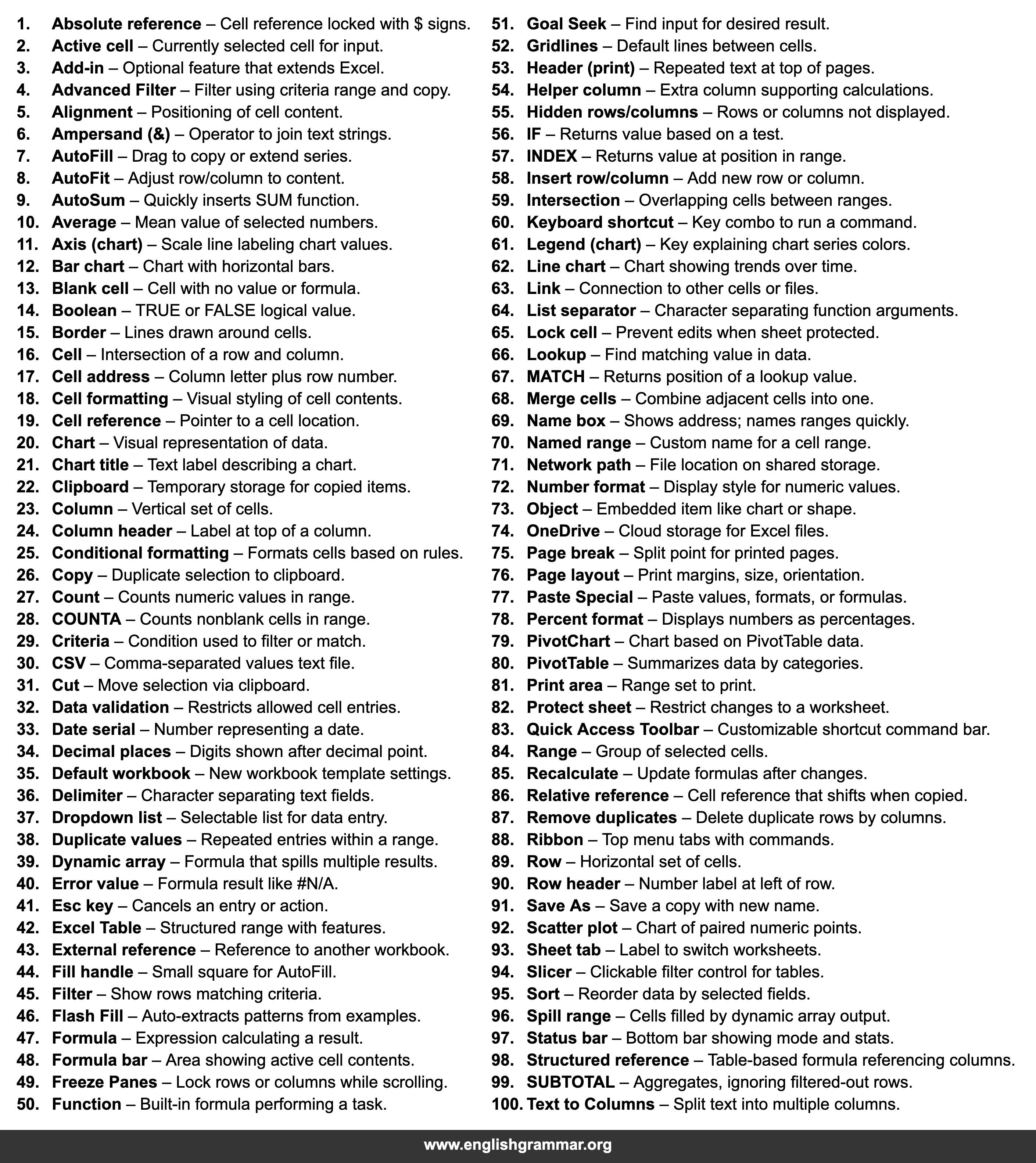
| No. | Term | Definition |
|---|---|---|
| 1. | Absolute reference | Cell reference locked with $ signs. |
| 2. | Active cell | Currently selected cell for input. |
| 3. | Add-in | Optional feature that extends Excel. |
| 4. | Advanced Filter | Filter using criteria range and copy. |
| 5. | Alignment | Positioning of cell content. |
| 6. | Ampersand (&) | Operator to join text strings. |
| 7. | AutoFill | Drag to copy or extend series. |
| 8. | AutoFit | Adjust row/column to content. |
| 9. | AutoSum | Quickly inserts SUM function. |
| 10. | Average | Mean value of selected numbers. |
| 11. | Axis (chart) | Scale line labeling chart values. |
| 12. | Bar chart | Chart with horizontal bars. |
| 13. | Blank cell | Cell with no value or formula. |
| 14. | Boolean | TRUE or FALSE logical value. |
| 15. | Border | Lines drawn around cells. |
| 16. | Cell | Intersection of a row and column. |
| 17. | Cell address | Column letter plus row number. |
| 18. | Cell formatting | Visual styling of cell contents. |
| 19. | Cell reference | Pointer to a cell location. |
| 20. | Chart | Visual representation of data. |
| 21. | Chart title | Text label describing a chart. |
| 22. | Clipboard | Temporary storage for copied items. |
| 23. | Column | Vertical set of cells. |
| 24. | Column header | Label at top of a column. |
| 25. | Conditional formatting | Formats cells based on rules. |
| 26. | Copy | Duplicate selection to clipboard. |
| 27. | Count | Counts numeric values in range. |
| 28. | COUNTA | Counts nonblank cells in range. |
| 29. | Criteria | Condition used to filter or match. |
| 30. | CSV | Comma-separated values text file. |
| 31. | Cut | Move selection via clipboard. |
| 32. | Data validation | Restricts allowed cell entries. |
| 33. | Date serial | Number representing a date. |
| 34. | Decimal places | Digits shown after decimal point. |
| 35. | Default workbook | New workbook template settings. |
| 36. | Delimiter | Character separating text fields. |
| 37. | Dropdown list | Selectable list for data entry. |
| 38. | Duplicate values | Repeated entries within a range. |
| 39. | Dynamic array | Formula that spills multiple results. |
| 40. | Error value | Formula result like #N/A. |
| 41. | Esc key | Cancels an entry or action. |
| 42. | Excel Table | Structured range with features. |
| 43. | External reference | Reference to another workbook. |
| 44. | Fill handle | Small square for AutoFill. |
| 45. | Filter | Show rows matching criteria. |
| 46. | Flash Fill | Auto-extracts patterns from examples. |
| 47. | Formula | Expression calculating a result. |
| 48. | Formula bar | Area showing active cell contents. |
| 49. | Freeze Panes | Lock rows or columns while scrolling. |
| 50. | Function | Built-in formula performing a task. |
| 51. | Goal Seek | Find input for desired result. |
| 52. | Gridlines | Default lines between cells. |
| 53. | Header (print) | Repeated text at top of pages. |
| 54. | Helper column | Extra column supporting calculations. |
| 55. | Hidden rows/columns | Rows or columns not displayed. |
| 56. | IF | Returns value based on a test. |
| 57. | INDEX | Returns value at position in range. |
| 58. | Insert row/column | Add new row or column. |
| 59. | Intersection | Overlapping cells between ranges. |
| 60. | Keyboard shortcut | Key combo to run a command. |
| 61. | Legend (chart) | Key explaining chart series colors. |
| 62. | Line chart | Chart showing trends over time. |
| 63. | Link | Connection to other cells or files. |
| 64. | List separator | Character separating function arguments. |
| 65. | Lock cell | Prevent edits when sheet protected. |
| 66. | Lookup | Find matching value in data. |
| 67. | MATCH | Returns position of a lookup value. |
| 68. | Merge cells | Combine adjacent cells into one. |
| 69. | Name box | Shows address; names ranges quickly. |
| 70. | Named range | Custom name for a cell range. |
| 71. | Network path | File location on shared storage. |
| 72. | Number format | Display style for numeric values. |
| 73. | Object | Embedded item like chart or shape. |
| 74. | OneDrive | Cloud storage for Excel files. |
| 75. | Page break | Split point for printed pages. |
| 76. | Page layout | Print margins, size, orientation. |
| 77. | Paste Special | Paste values, formats, or formulas. |
| 78. | Percent format | Displays numbers as percentages. |
| 79. | PivotChart | Chart based on PivotTable data. |
| 80. | PivotTable | Summarizes data by categories. |
| 81. | Print area | Range set to print. |
| 82. | Protect sheet | Restrict changes to a worksheet. |
| 83. | Quick Access Toolbar | Customizable shortcut command bar. |
| 84. | Range | Group of selected cells. |
| 85. | Recalculate | Update formulas after changes. |
| 86. | Relative reference | Cell reference that shifts when copied. |
| 87. | Remove duplicates | Delete duplicate rows by columns. |
| 88. | Ribbon | Top menu tabs with commands. |
| 89. | Row | Horizontal set of cells. |
| 90. | Row header | Number label at left of row. |
| 91. | Save As | Save a copy with new name. |
| 92. | Scatter plot | Chart of paired numeric points. |
| 93. | Sheet tab | Label to switch worksheets. |
| 94. | Slicer | Clickable filter control for tables. |
| 95. | Sort | Reorder data by selected fields. |
| 96. | Spill range | Cells filled by dynamic array output. |
| 97. | Status bar | Bottom bar showing mode and stats. |
| 98. | Structured reference | Table-based formula referencing columns. |
| 99. | SUBTOTAL | Aggregates, ignoring filtered-out rows. |
| 100. | Text to Columns | Split text into multiple columns. |
